WhatsApp button on your landing page: capture the lead before the chat starts
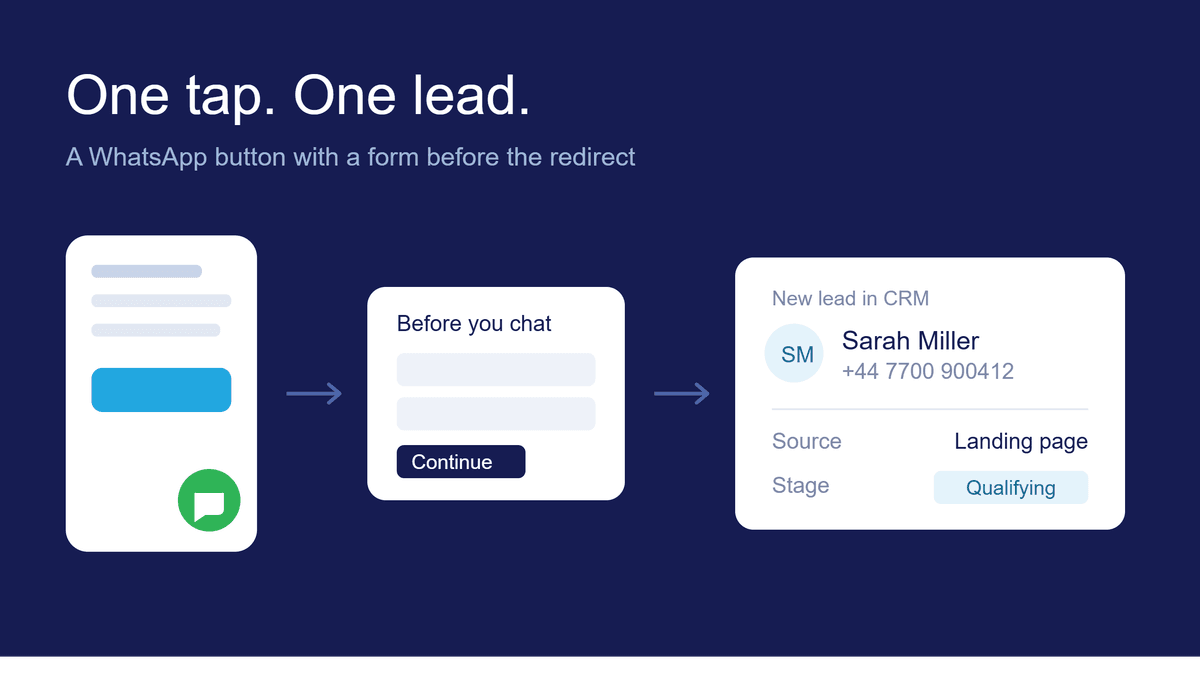
With a standard WhatsApp button, the visitor taps and disappears: no name, no email, no source. FlyB lets you ask for a short form before the redirect so the lead lands in your CRM. Two-minute walkthrough, video included.
A WhatsApp button is the shortest path between your page and a conversation. On most pages, it's also the exact spot where leads vanish.
Think about what happens today. Someone taps, the browser hands them off to WhatsApp, and that's it. If they don't send a message, you have nothing. No name, no email, no idea where they came from. And even if they do write, the contact only exists inside a chat app, buried between a quote request, an old customer, and the family group.
FlyB lets you close that gap in about two minutes: ask for a short form before the redirect. The visitor fills in their details, goes to WhatsApp as usual, and the lead is saved in your CRM.
Why put a form in front
Adding a step in the middle of a conversion sounds backwards. Here's the trade: you accept a bit of friction on the tap and get three things you didn't have before.
A record. The contact enters your CRM the moment they tap, not if and when they send a message. Someone who drops off halfway is still your lead.
Qualification. You decide what to ask. Name and phone cover the basics, but you can add fields that separate browsers from buyers: service type, budget, timeline, company size. You walk into the conversation already knowing who you're talking to.
Continuity. Because the lead sits in your CRM, it enters your funnel stages and can trigger automatic follow-up. When the WhatsApp thread goes cold, and plenty of them do, the contact doesn't go cold with it.
Worth naming the cost: a long form kills conversion. Ask for the minimum you'll actually use. Three fields is usually the ceiling for this kind of capture.
How to set it up
Rather watch it? We recorded the full setup on video (2 min). If you'd rather read, just keep scrolling.
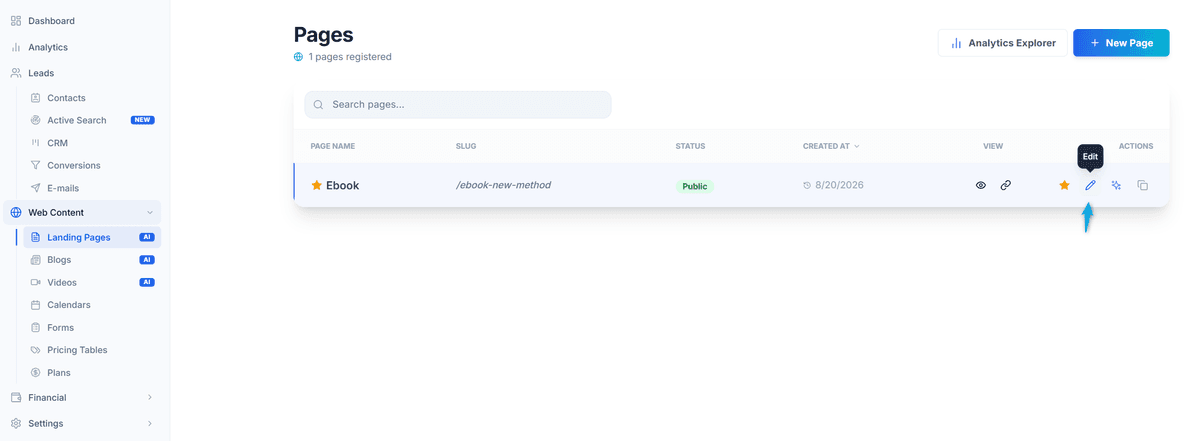
1. Open the page in the editor
Go to Web Content → Landing pages and click Edit on the page where you want the floating button.
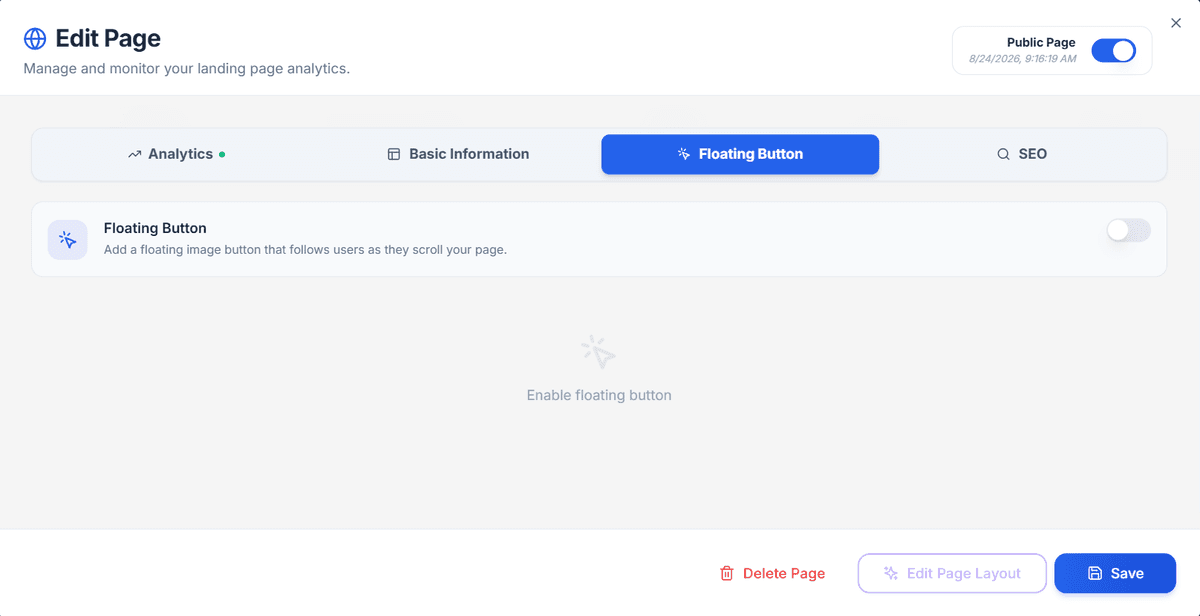
2. Turn on the floating button
In the editor, open the Floating Button tab and switch it on.
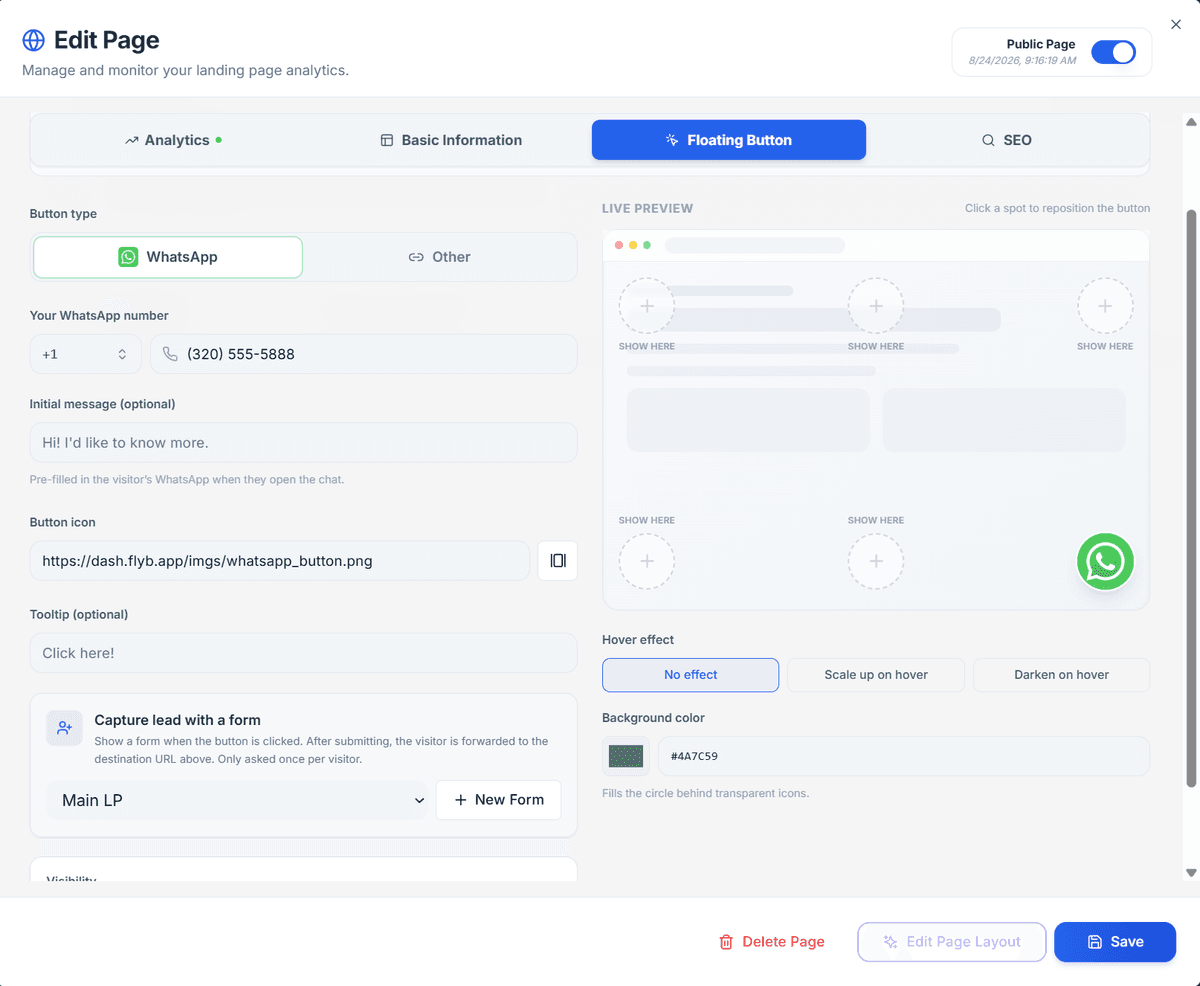
3. Configure WhatsApp
On the configuration screen:
- WhatsApp number (required). This is where the conversation goes.
- Optional fields, such as the opening message and button label. A pre-filled message helps visitors start talking instead of freezing at "hi, quick question".
- Lead capture form. This is the part that matters: pick a form and the visitor submits their details before being redirected. That's what guarantees the CRM record and the qualification.
4. Adjust the look
You can change the button's position on screen, its color, and add an effect. Worth testing: bottom right is what everyone expects, but on pages with a sticky footer CTA the button can fight for space on mobile.
5. Save
Click Save. The button is live on your page.
What to do next
Setting up the button is the starting point. The value shows up in what comes after.
Create a dedicated funnel stage for WhatsApp leads, since they arrive warmer than a standard contact form and deserve a different response time. Set up automatic follow-up for people who filled in the form but never wrote, where a single email within 24 hours handles most cases. And watch in Analytics how many button taps turn into completed forms: when that rate is low, the culprit is almost always too many fields.
Once it's configured, the tap on WhatsApp stops being a blind spot and becomes another entry point into your funnel.